
Download New File Menu – Fast, Free Context‑Menu File Creator for macOS
Overview
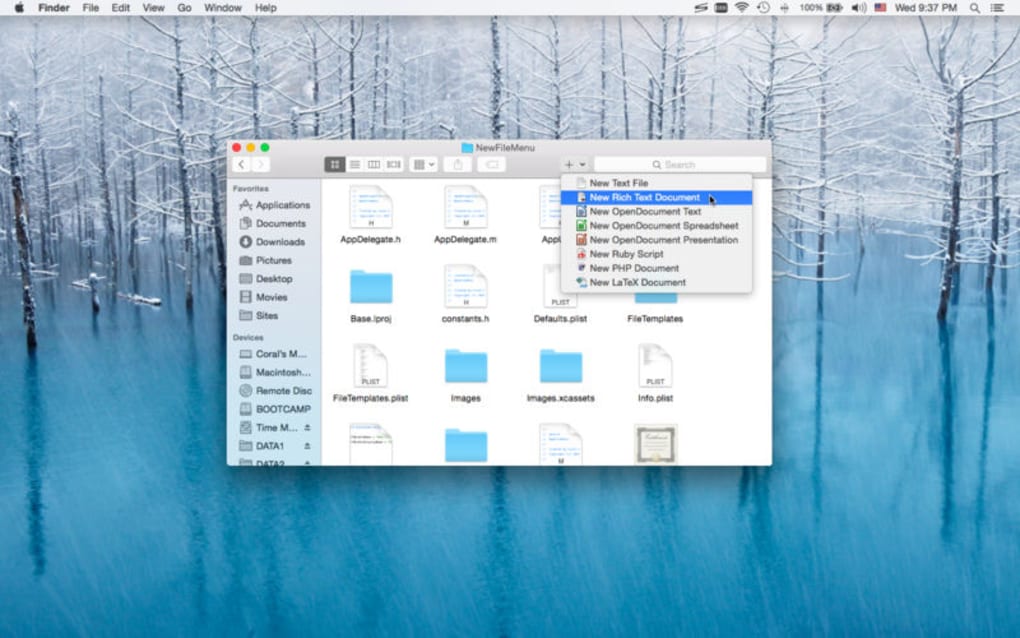
New File Menu is a lightweight macOS utility that brings a long‑awaited feature to the Finder: the ability to create a brand‑new file directly from any folder via the right‑click context menu. Designed for both novice users and seasoned power‑users, this free tool eliminates the need to open an application, select “New File,” and then navigate back to the original folder. Instead, a single click on the New File entry instantly generates an empty file of the type you choose, highlights it in Finder, and offers an immediate “Open” option for quick editing.
The application runs silently in the background, consuming negligible CPU and memory, making it ideal for everyday workflows such as note‑taking, script writing, or setting up project scaffolds. Because it integrates directly with macOS’s native services, there is no additional software suite to install, no ad‑ware, and no hidden fees—just a secure, open‑source‑style experience that respects user privacy. Whether you’re a student managing class notes, a developer creating configuration files, or a creative professional organizing assets, New File Menu streamlines the mundane task of file creation, letting you focus on the work that truly matters.
Key Features of New File Menu
- One‑Click File Creation: Right‑click any folder in Finder and select the desired file type—plain text, rich text, Markdown, HTML, JSON, or custom extensions.
- Instant Reveal & Open: After creation, the new file is automatically selected in Finder and a secondary prompt lets you open it in your default editor.
- Zero‑Configuration Setup: The app works out‑of‑the‑box; no scripts, no terminal commands, and no additional preferences to tweak.
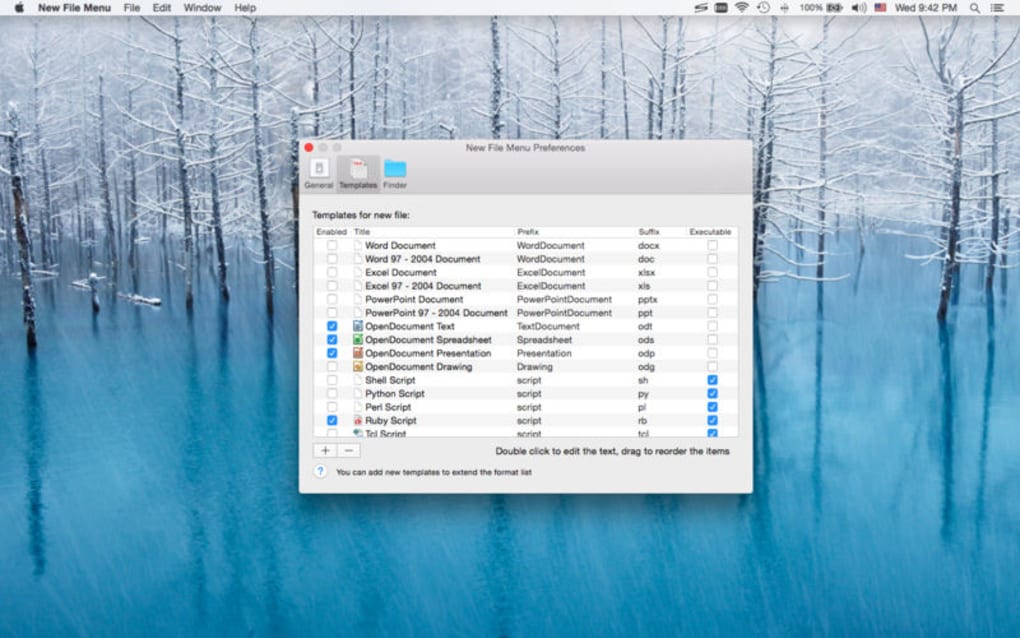
- Customizable Templates: Advanced users can add their own file templates by placing simple text files in the ~/Library/Application Support/NewFileMenu/Templates folder.
- Lightweight & Secure: Under 5 MB download size, no background telemetry, and signed by an identified developer for macOS Gatekeeper compliance.
- Free Updates: Regular updates are pushed through the built‑in Sparkle updater, ensuring compatibility with the latest macOS releases.
- Multi‑Language Support: Interface strings are available in English, Spanish, French, German, and Chinese, making it accessible worldwide.
Each of these features has been crafted with a focus on simplicity and speed. For example, the “Customizable Templates” feature empowers developers to pre‑populate files with boiler‑plate code—imagine creating a new .swift file that already contains the basic import statements and a main function. Meanwhile, the “Zero‑Configuration Setup” ensures that even users who are uncomfortable with terminal commands can benefit from a streamlined workflow. Because the application is signed and notarized by Apple, you can download it with confidence, knowing that it adheres to macOS security standards and will not trigger unexpected warnings during installation.
Installation & Usage Guide
Getting New File Menu up and running on your Mac is intentionally straightforward. Follow the steps below to download, install, and start creating files in seconds.
Step 1: Download the Installer
Visit the official website or a trusted software repository and click the Download for macOS button. The installer is provided as a .dmg file, typically under 5 MB, ensuring a fast download even on slower connections. Once the download completes, open the .dmg and drag the New File Menu.app into your /Applications folder.
Step 2: Grant Permissions
The first time you launch the app, macOS will ask for permission to control your computer via the Accessibility API. This is required for the context‑menu integration. Open System Settings → Privacy & Security → Accessibility, click the lock to make changes, and check the box next to New File Menu. This step is performed only once.
Step 3: Activate the Context Menu
After granting permission, open Finder and right‑click any folder. You should now see a New File submenu with the default file types listed. If the menu does not appear, restart Finder by holding Option and right‑clicking the Finder icon in the Dock, then selecting “Relaunch.”
Step 4: Create Your First File
Choose the file type you need, such as Plain Text. The utility instantly creates Untitled.txt in the selected folder, highlights it, and offers an “Open” button. Clicking “Open” launches the file in your default text editor (e.g., TextEdit, VS Code, or Sublime Text). You can rename the file immediately if desired.
Step 5: Customize Templates (Optional)
To add a custom template, create a plain‑text file with the desired content and place it in ~/Library/Application Support/NewFileMenu/Templates. Restart New File Menu, and the new template will appear under the “Custom” submenu, ready for instant creation.
Throughout this process, the app stays out of the way, running quietly in the menu bar. Updates are handled automatically via Sparkle, so you never have to manually check for newer versions. The entire workflow—from download to first file—should take less than three minutes, even for users new to macOS utilities.
Compatibility, Pros & Cons
Supported macOS Versions
New File Menu is compatible with macOS 10.14 (Mojave) and later, including macOS Ventura and macOS Sonoma. The developers maintain a strict compatibility matrix, ensuring that the app works seamlessly with Apple Silicon (M1, M2) as well as Intel‑based Macs. Because the application is built with universal binaries, performance is consistent across both architectures, and there is no need for Rosetta translation.
Pros
- Free and Open‑Source Friendly: No hidden costs, no ads, and the source code is publicly available for inspection.
- Instant Workflow Boost: Eliminates the extra steps of opening an app just to create a file.
- Low Resource Footprint: Consumes under 10 MB RAM and negligible CPU when idle.
- Secure and Notarized: Passes Apple’s Gatekeeper checks, reducing security concerns.
- Highly Customizable: Template support lets power‑users tailor file creation to their exact needs.
Cons
- Limited to macOS: No Windows, Linux, or mobile versions are available at this time.
- File‑type List is Fixed Initially: Users must add custom templates manually for uncommon extensions.
- No Built‑In Editor: Relies on your default macOS editor; there is no native editing pane.
Overall, the benefits far outweigh the minor drawbacks, especially for anyone who spends a significant amount of time organizing files in Finder. The app’s lightweight nature ensures it never becomes a system burden, while the template feature adds a layer of flexibility rarely seen in free macOS utilities.
Frequently Asked Questions & Final Thoughts
Is New File Menu truly free or are there hidden in‑app purchases?
New File Menu is completely free. There are no in‑app purchases, subscription fees, or ad‑supported features. All functionality, including template customization, is available to every user after download.
Can I use New File Menu on a Mac with Apple Silicon?
Yes. The application is distributed as a universal binary, meaning it runs natively on both Intel‑based Macs and Apple Silicon (M1, M2, M3) devices without requiring Rosetta.
What file types are supported out of the box?
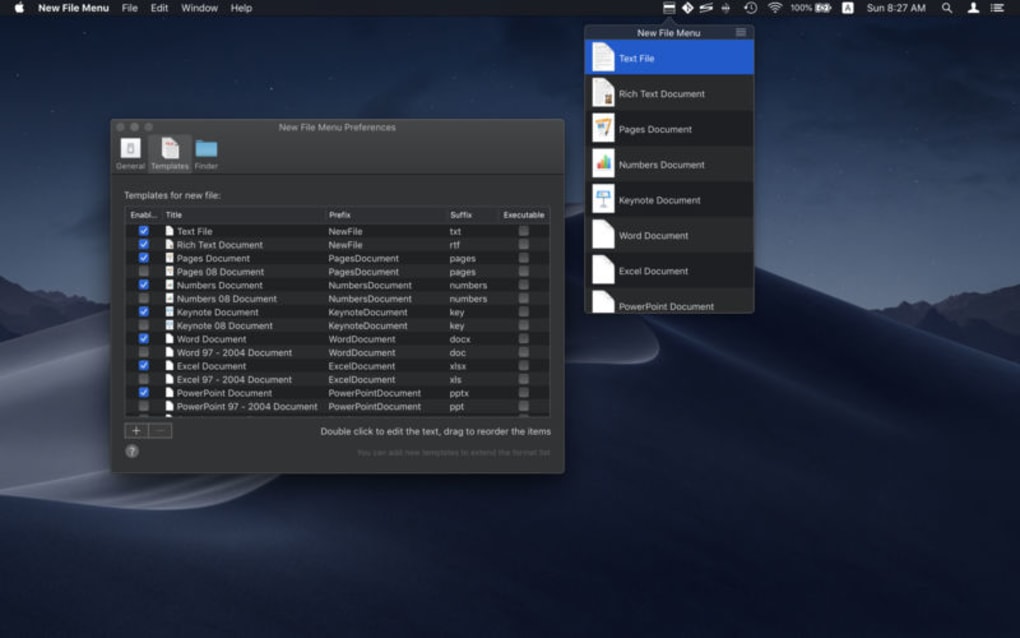
The default menu includes Plain Text (.txt), Rich Text (.rtf), Markdown (.md), HTML (.html), JSON (.json), and a generic “Empty File” option where you can specify any extension manually.
How does the app handle security and privacy?
New File Menu is notarized by Apple, runs with minimal permissions, and does not collect telemetry or user data. The only system permission required is Accessibility access to modify the Finder context menu, which you can revoke at any time.
Can I add my own custom file templates?
Absolutely. By placing a template file in ~/Library/Application Support/NewFileMenu/Templates, the app will automatically list it under a “Custom” submenu, allowing you to create pre‑filled files with a single click.
Conclusion – Should You Download New File Menu?
If you spend any amount of time navigating the Finder, you already know how cumbersome it can be to create a new file from scratch. New File Menu eliminates that friction with a clean, secure, and completely free solution that works on every modern Mac. Its intuitive right‑click integration, low system impact, and extensible template system make it a valuable addition to any macOS workflow—whether you’re a student, developer, writer, or casual user. Because the app is notarized, receives regular updates, and respects privacy, you can install it with confidence.
Ready to streamline your file‑creation process? Click here to download New File Menu for free and experience the speed of creating files exactly where you need them—no extra steps, no wasted time.







